
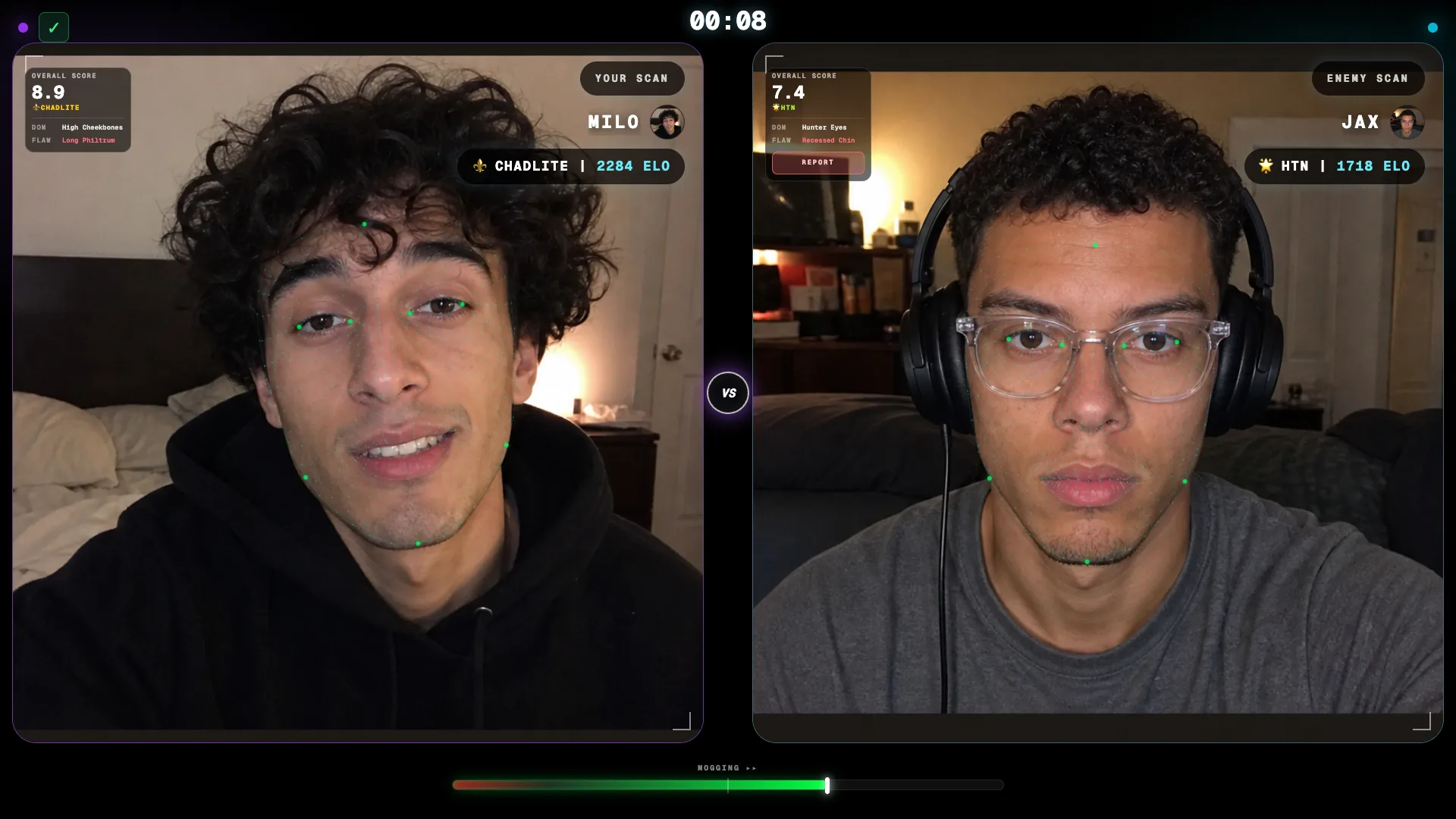
This manual explains the image-generation fields in the same order they appear in the Omoggle Face Battle Generator studio. Use it when you want a controlled Omoggle-style result screen instead of guessing what each panel setting changes.
Setup
The Setup tab controls the shared output, match state, and optional interface layers.
- Reset: Clears the draft, selected local media, and temporary browser draft, then restores default values and returns to Setup.
Layout
Choose the layout used for preview and image export.
- Mobile: Uses the phone-style arena layout, 390 x 844 px by default.
- Desktop: Uses the desktop arena layout, 1920 x 1080 px by default.
Match setup
Set the visible match state and result details.
- Screen: Chooses the visible state: Waiting room, Countdown, Face scan, Live battle, or Result screen.
- Outcome: Appears on the Result screen and sets the selected result: draw, narrow win or loss, standard win or loss, or dominant win or loss.
- Timer: Shows in supported pre-result screens and sets the arena timer from 0 to 60 seconds.
- Countdown: Appears on Countdown and sets the large countdown number from 0 to 5.
- Balance bar: Appears during Face scan and Live battle. It sets the balance position when both sides have the same score.
Visibility
Show or hide optional interface elements for the selected screen.
- Policy notice: Shows or hides the privacy and terms notice at the top of the arena.
- Connection status: Shows or hides the connection status layer.
- Timer: Shows or hides the timer when the selected Screen supports it.
- Balance bar: Shows or hides the balance bar when the selected screen supports it.
- Result overlay: Shows or hides the final result overlay on result-capable screens.
- View match analysis: Shows or hides the View Match Analysis action on the result screen.
- Report opponent: Shows or hides the Report Opponent action on the result screen.
You
The You tab controls your side of the result draft.
Profile
- Name: Sets the local display name. The rendered arena may uppercase it.
- Profile photo: Sets the profile image. If empty, the preview uses the first letter of the name.
- Camera image: Sets the main camera panel image for the local side.
- Upload: Selects a local image for this field.
- Replace: Appears after a file is selected and lets you choose another local file.
- Clear: Removes the selected image from this field.
Stats
- Score rank: Chooses a preset scan rank and fills in the matching overall score.
- Overall score: Sets the visible scan score from 0.0 to 10.0. Manual edits stay within the supported range.
- Profile rank: Chooses a preset profile rank and fills in the matching Elo rating and anonymous setting.
- Elo rating: Sets the Elo number shown beside the rank. Manual edits are rounded to a whole number.
- Connected: Controls whether the local side appears connected in the arena status.
- Anonymous: Marks the local profile as anonymous or unranked for rank display.
Face scan details
This section appears during Face scan and Live battle.
- Scan status: Sets the local scan card to Ready, Scanning, or Invalid.
- Strongest trait: Sets the strongest trait label on the local scan card.
- Weakest trait: Sets the weakest trait label on the local scan card.
- Face landmarks: Shows or hides the face landmark overlay when a camera image and supported scan state are available.
- Scan report: Shows or hides the report action inside the local scan card.
Camera framing
This section appears after a Camera image is selected.
- Camera scale: Zooms the local camera image within the panel.
- Horizontal position: Moves the local camera image left or right.
- Vertical position: Moves the local camera image up or down.
Opponent
The Opponent tab mirrors the You tab for the other side of the result draft.
Profile
- Name: Sets the opponent display name. The rendered arena may uppercase it.
- Profile photo: Sets the opponent profile image. If empty, the preview uses the first letter of the name.
- Camera image: Sets the main camera panel image for the opponent side.
- Upload: Selects a local image for this field.
- Replace: Appears after a file is selected and lets you choose another local file.
- Clear: Removes the selected image from this field.
Stats
- Score rank: Chooses a preset opponent scan rank and fills in the matching overall score.
- Overall score: Sets the opponent visible scan score from 0.0 to 10.0. Manual edits stay within the supported range.
- Profile rank: Chooses a preset opponent profile rank and fills in the matching Elo rating and anonymous setting.
- Elo rating: Sets the opponent Elo number shown beside the rank. Manual edits are rounded to a whole number.
- Connected: Controls whether the opponent appears connected in the arena status.
- Anonymous: Marks the opponent profile as anonymous or unranked for rank display.
Face scan details
This section appears during Face scan and Live battle.
- Scan status: Sets the opponent scan card to Ready, Scanning, or Invalid.
- Strongest trait: Sets the strongest trait label on the opponent scan card.
- Weakest trait: Sets the weakest trait label on the opponent scan card.
- Face landmarks: Shows or hides the opponent face landmark overlay when a camera image and supported scan state are available.
- Scan report: Shows or hides the report action inside the opponent scan card.
Camera framing
This section appears after a Camera image is selected.
- Camera scale: Zooms the opponent camera image within the panel.
- Horizontal position: Moves the opponent camera image left or right.
- Vertical position: Moves the opponent camera image up or down.